
Call me old-fashioned, but hardly a day goes by where I'm not thinking about the ARPANET.
I mean, c'mon, it's the dang ARPANET - the precursor to today's Internet, basically marking the beginnings of disparate computer systems talking to each other, of people talking to each other through computers, concocted way back in 1969. If you look at what people were doing on the ARPANET almost immediately (and even earlier on similar systems like University of Illinois's PLATO), you'll see that the ARPANET was a harbinger for all the games and e-commerce and apps and whatnot that we rely on every single second of every single day. How can you not be thinking about this stuff all the time?
Since I've already written somewhat of a love-letter to the World Wide Web in our post explaining how Folio connects with suppliers, I'd like to now continue this theme of computer history affection with a dive into one of the earlier protocols from the ARPANET era. It's a protocol that still powers many procurement workflows like order processing, catalog sharing, invoicing, and more.
That's right, it's the File Transfer Protocol (FTP) - invented in 1971 - along with its more secure, late '90s sibling: SFTP.
And, rest assured, we're not just spelunking into these Internet protocols for the sake of it (though there's nothing wrong with that), we're going to be actively giving context for some of the advantages of leveraging Folio's API + web-based lightning integrations for procure-to-pay workflows, while still paying respect to traditional SFTP file drops. Along the way, we're going to code up a few toy examples to understand why SFTP is more secure than FTP, as well as what the heck people mean when they talk about those daily or weekly SFTP "sweeps" (and, crucially, why it's hard to figure out if they worked or not!).
Let the sweeping begin!
A protocol to transfer files
If you're a fellow ARPANET history buff, you're already familiar with RFCs (Request for Comments). For the uninitiated, RFCs are basically the history of the Internet, one technical design doc at a time (see, they're not just for FAANG promo packets). And, guess what, they're all online for anyone to read! I'll prove it - here's the first RFC on FTP - RFC 114.
RFC 114, published in 1971 — eighteen years before the World Wide Web — established FTP as a protocol for transferring files between computers over a network. Many more RFCs were published over time on FTP, honing its implementation as the ARPANET and eventually the Internet evolved into what we know (and sorta love) today.
FTP, as defined in its RFCs, uses a client-server architecture with two separate connections:
Control connection (port 21): Where you send commands like "list directory" or "upload this file"
Data connection (port 20): Where the actual file content flows
From these early specifications to the present day with SFTP, the basic file transfer UX of this protocol remains largely the same: a user connects to an server, authenticates with credentials, navigates through directories, and transfers files.
Easy enough, right?
Indeed, so much so that I was using FTP back in the mid '90s without even realizing it.
FTP in the GeoCities era
Imagine this scene: you've just hit *save* on the last edit to your personal homepage in Notepad or BBEdit (or let's be honest, Dreamweaver). Your site's got some <marquee> and <blink> tags, a page views hit counter, and definitely an "Under Construction" GIF. Probably also this classic:

So now what? Is your cool website "on-line" yet? Nope! Apparently, you need to get this HTML file thing from your family's Gateway 2000 computer onto, quote, your "web host's server" (whatever that means…) so your friends can check out your site.
After talking to your web hosting provider's support hotline, they send you an email with your FTP credentials:
You dutifully follow along with the provided instructions, firing up a dedicated FTP client app, plugging in these credentials, and connecting to their server. The FTP client interface shows two panes side by side—your local home computer on the left, and the remote web server on the right.
You can see folders and files on some server probably thousands of miles away, and you can drag and drop files between your computer and that remote machine.
You drag index.html from left to right, watch a progress bar fill up, and boom—your website is live. Navigate to http://www.geocities.com/your_username and there's your homepage! You hit refresh a couple dozen times to get that counter up (at least that's what I always did).
It's almost too easy
But easy wasn't the problem with FTP. It's that everything in FTP is transmitted in plaintext (aka human-readable, unencrypted text).
Every time Dreamweaver connected to your GeoCities web server via FTP:
Your
welcome123password flew across the Internet unencryptedThe contents of the website site (e.g.
index.html) transferred unencryptedSomeone at your ISP, your hosting provider, or anywhere in between could theoretically read everything
For personal hobby sites, most folks didn't care (or were largely unaware of any issue). But you can imagine how this would be a problem for anything commerce-related (for example, imagine if the file contents were actually meant to be something private, rather than an HTML file for public consumption).
Since we're big fans of procurement at Folio, let's put this issue into procure-to-pay terms.
Imagine you're a food supplier for hotels and restaurants. You'd like to share your *EDI 832 Price/Sales Catalog* file with a procurement platform so that your customers can view your products and place purchase orders with you.
EDI (Electronic Data Interchange) is the idea of businesses exchanging structured electronic documents to facilitate workflows that were previously done via paper. Think purchase orders, invoices, catalogs, etc. EDI files are very commonly exchanged via SFTP.
Every week, you connect to the procurement platform's FTP server to transfer your latest EDI X12 832 catalog file, which contains your customer specific catalog, including special negotiated pricing for each of your items with each of your hotel customers.
If you were to transmit this file via FTP, then all of your catalog information flows across the Internet in plaintext (aka plain, readable, unencrypted text that anyone could understand). That means that anyone with network access along the path of your transmission could:
Capture your login credentials and access this FTP server
Intercept sensitive business information, including your negotiated pricing and item availability
It's easy to see how this lack of encryption would be problematic. As commerce and other sensitive workflows like finance gained in popularity on the ARPANET and Internet, it became increasingly obviously that transmitting credentials and business data in plaintext was going to be unacceptable.
Show me the plaintext
Let's try this out ourselves in an educational toy demo to see this security issue with FTP directly.
For the technically-inclined, I'll assume you're following along on a modern Mac with uv installed (it's a modern Python package / project manager that simplifies a lot of the traditional Python headaches) as well as Homebrew.
In three separate terminal windows, we're going to:
Run an FTP server locally on our computer
Listen to local "internet" traffic on our computer using
tcpdumpConnect to the local FTP server, as if were planning to transfer a file!
If all goes well with our demo, we should be able to see the plaintext credentials being sent to the FTP server in terminal #2, demonstrating the plaintext vulnerability with FTP.
In terminal #1, let's run the pyftpdlib package (a Python FTP server) to start a local FTP server:
In terminal #2, we can start listening to internet traffic with tcpdump and we'll even filter it down just to look for the FTP credentials.
In terminal #3, we can now connect to our local FTP server (still running in Terminal #1) with the lftp app (which you'll likely have to first install with Homebrew):
Finally, back in terminal #2, which is still sitting there, listening to internet traffic and searching for the phrase USER or PASS, you should now see the unencrypted username testuser and the unencrypted password testpass123 printed out directly.
Uh-oh! It's easy to imagine a real world scenario here — you can see how transmitting these credentials in plaintext makes it easier for someone to gain access to your company's purchase order system. This issue with FTP is clearly not a good situation for serious business applications, like procurement or invoicing workflows.
Which now brings us to the 1990s, when a new idea emerged for remote computing and file transfers onto the Internet RFC scene: SSH and SFTP.
The S in SFTP stands for SSH
SFTP stands for SSH File Transfer Protocol (thought it's sometimes incorrectly referred to as Secure File Transfer Protocol). Despite the similarity in names, SFTP is not FTP with encryption attached. Instead, it's an entirely separate protocol designed by the Internet Engineering Task Force (IETF) as an extension of the SSH (Secure Shell) protocol (first specified in RFC 4250 back in 1995).
SFTP uses a single encrypted connection over port 22 (the same port that SSH uses) to handle both commands and data transfer.
Here's a basic walkthrough:
SSH handshake: The client initiates a connection to the server on port 22
Authentication: The server verifies the client's identity using either username/password, SSH keys, or both
Encrypted tunnel: SSH establishes an encrypted tunnel where all subsequent data flows
SFTP subsystem: Within this secure tunnel, the SFTP protocol handles file operations
Perhaps one of the greatest benefits of this approach is that everything - authentication credentials, file contents, and even directory listings - is encrypted end-to-end. A listener on the network would see nothing but encrypted gibberish. This is why many workflows (in procurement and beyond) use SFTP for transferring files to this day.
Simulating an SFTP workflow for procurement
Importantly, SFTP isn't just about moving files from one computer to another. You can do quite a bit:
get/put: Download and upload filesls/mkdir: List directories and create foldersrename/rm: Rename and delete filesresume: Resume interrupted transfers (a lifesaver on unreliable connections)
With these building-blocks, developers have built some really nice UIs for SFTP that feel exactly like using your local computer's file system (I'm thinking of Panic's Transmit app, for one). But you can also stick to the command line if that's your thing!
For example, in procurement workflows, a typical SFTP interaction might look like this.
We're first grabbing the latest catalog file with that get command, and then we're dropping in a purchase order for the supplier with the put command. The specific format of these files really depends on what the supplier expects or requires. As mentioned earlier, many procure-to-pay workflows leverage some form of an EDI specification — but these vary quite widely in practice (EDI merits a whole other blog post, to be fair - I'll pencil this in now for the future).
Anyway, in practice (hopefully), no one is really typing in these SFTP commands at 2 AM. That's what computers are for, silly! Here's where automation comes in.
Enter the sweep: Automated folder monitoring
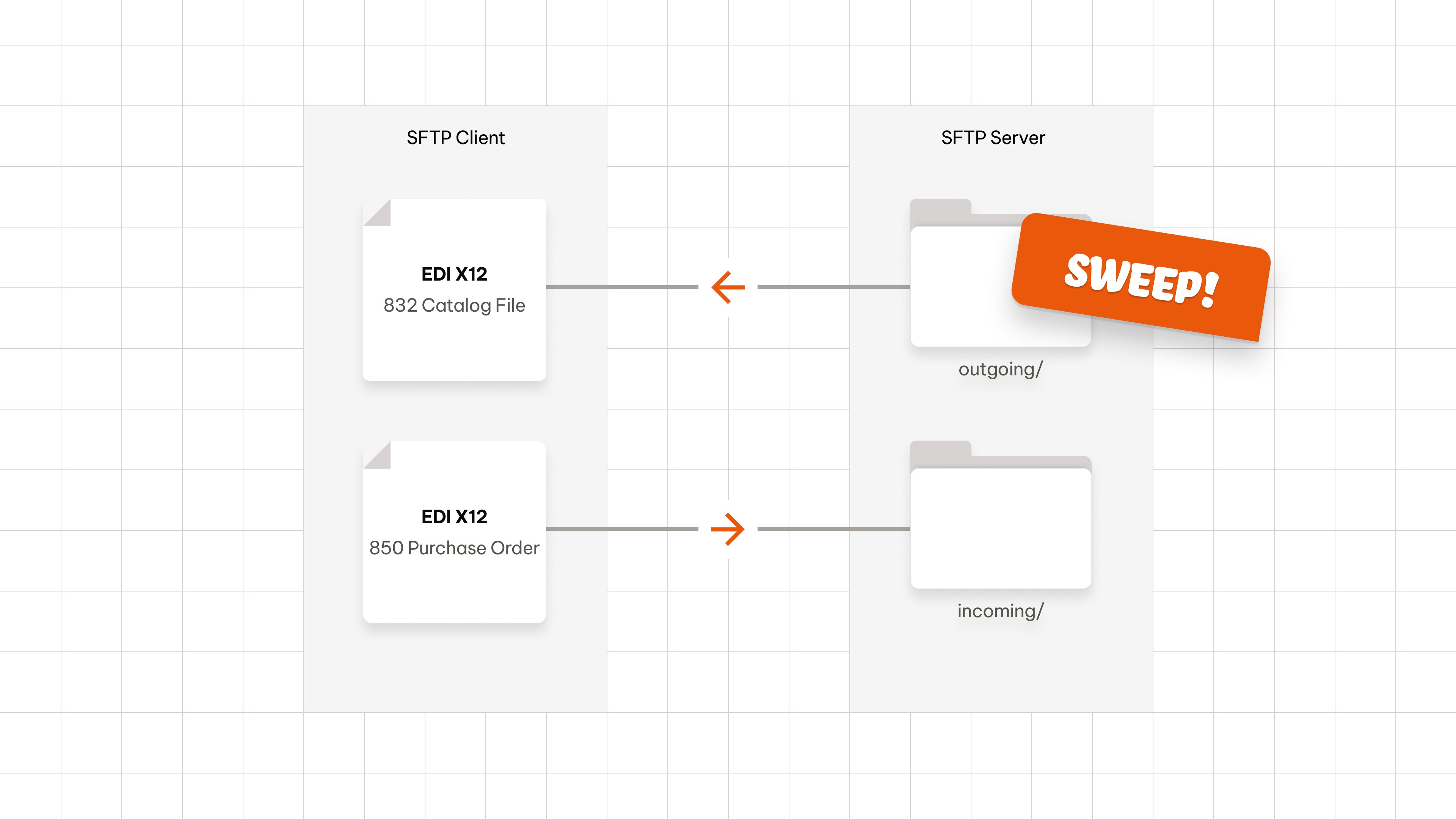
In procurement SFTP integrations, "sweeps" or "polling" refers to the automated process of periodically checking a folder for new files. It's the mechanism that keeps EDI and other SFTP procurement workflows humming along without human intervention.
Here's how a typical catalog sweep works:
The Setup:
Supplier maintains an SFTP server with designated folders
Hotel's procurement system has credentials to access specific folders on the supplier's SFTP server
A background job is configured by the hotel's procurement system to "sweep" the catalog folder every week (or on whichever cadence the supplier updates their catalog).
The Sweep Cycle:
At scheduled time (say, 2:00 AM), the procurement system connects via SFTP
It lists all files in the
/outgoing/catalogfolderFor each file, it checks: "Have I seen this file before?" likely using some pattern in the filename
New files are downloaded and processed
Optionally, processed files are moved to an
/archivefolder or deletedConnection closes
System waits until next scheduled sweep next week
Hopefully it's obvious that there's no real-time notification. The supplier's server doesn't "push" files to the hotel. The procurement system has to periodically "ask" if anything new has arrived. It's like checking your mailbox instead of waiting for a doorbell.
You'll also see sweeps in the other direction, where a procurement platform drops new purchase orders into a folder on a supplier's SFTP server, and the supplier "sweeps" them out every minute or so for order processing. And, hopefully, at that point, it all works, that all the products are available and nothing's out of stock, and the purchase order goes through without a hitch, but we'll get into each of these potential issues in a bit.
For now, let's try out sweeping ourselves.
Simulating an SFTP sweep on your home computer
Let's set up a local SFTP server using Docker. We'll be able to see exactly how files appear and disappear during sweep operations.
Quick setup with Docker
First, create a simple configuration file called sftp.json. We'll feed this config into our SFTP server (it sets up our simple username and password, for example).
Because I'm really nice, here's a one-liner to create that file:
Now we can spin up an SFTP server using the open-source emberstack/sftp Docker image:
Great, now we should have an SFTP server running on localhost:2222.
Playing with files
Let's connect to our local server:
Try creating a file locally and watching it appear in the SFTP server (this happens via the config setup with Docker).
Back in our SFTP session, let's grab this file.
Pretty basic stuff, I suppose. But still cool. We navigated to a directory in an SFTP server and transmitted a file from the SFTP server to our local computer, just like you would in a procurement catalog sweep.
Now let's write some automation!
Simulating an SFTP sweep with a simple script
We are going to make our own SFTP sweep script.
First, let's set up SSH key authentication for our script (which is more secure and automation-friendly than passwords).
Why SSH keys? SSH key authentication is strongly preferred over passwords for automated systems. Keys can't be accidentally typed incorrectly, they can be rotated without updating credentials in multiple places, and they provide non-repudiation (you know exactly which system made each connection).
This creates two files: supplier_key (private key) and supplier_key.pub (public key).
We're using
Ed25519here because it is a modern, elliptic curve-based algorithm that's more secure than traditional RSA keys while using much shorter key lengths (256 bits vs 2048+ bits for RSA).
Now we need to configure our SFTP server to accept this key. To do this, we can update our sftp.json file with this command:
Now we need to copy our public key into the server's authorized keys. First, stop your existing container:
If you've connected to localhost:2222 before (perhaps from earlier in this tutorial), you'll want to clean up the old host key to avoid SSH warnings:
Create the SSH directory structure and copy your public key:
Restart the SFTP server with the updated configuration:
Now create a file called sweep.sh with these contents:
The -i ./supplier_key flag tells SFTP to use our private key for authentication instead of prompting for a password. This is exactly how automated procurement systems authenticate—no human interaction required!
Make the script executable:
Finally, start your sweeper:
Run this script and watch as it periodically checks for new CSV files. Drop some CSV files into sftp-data/outgoing/ and watch them get picked up on the next sweep and downloaded into your downloads folder.
Are you now a procurement platform? Are you now a supplier platform? Probably not, but this is still pretty cool.
The challenges with SFTP: Why real-time matters
As we've just seen, SFTP sweeps work reliably for what they're designed to do: batch file transfers on a schedule. But they introduce fundamental limitations that can impact modern, real-time procure-to-pay workflows.
1. No real-time feedback
When you submit a purchase order via SFTP, here's what typically happens:
Your procurement system uploads
PO-12345.xmlto the supplier's/incoming/ordersfolderYou... wait
Eventually (1 minute? 30 minutes? 2 hours? Next business day?) the supplier platform sweeps the SFTP folder and processes the batch
They drop
PO-12345-confirmation.xmlin their/outgoing/ordersfolderYour next sweep picks it up
You finally learn if the order was accepted or if there were errors from out of stock items, etc.
Compare this to a modern API where you'd get an immediate response:
By leveraging the real-time nature of APIs and the web, Folio's lightning automations provide real-time feedback to hotels and restaurants when they're placing purchase orders, which can be at business critical times, like right before supplier cutoff windows.
2. Error handling is asynchronous, if available at all
Let's say you submit an order with an invalid product SKU. With SFTP:
Order uploads successfully (file transfer succeeded)
You think everything is fine
Some time later, you get an error file back
Now you need to correlate that error with the original order
Re-submit a corrected order with that item removed or error resolved
Wait again...
With synchronous APIs, you'd know immediately that SKU "12345A" should be "12345-A" and could fix it on the spot.
3. State management is manual
Your system likely needs to track: "Which files have I already processed?" This leads to complex state management:
Maintain a database of processed filenames
Handle edge cases (what if a file is re-uploaded with the same name?)
Deal with archive folder management
Debug when files mysteriously reprocess
4. Visibility is limited and requires out-of-band support communications
When something goes wrong, debugging is harder:
"Did the file get uploaded?" (Check your local logs)
"Did they receive it?" (Ask the supplier to check their folder)
"Did they process it?" (Wait for their response file... eventually)
"What went wrong?" (Parse cryptic error codes from a text file)
Compare this to modern API-based systems, which includes Folio's lightning automations, where you typically get:
Immediate success/failure responses
Structured error messages
Request IDs for tracking
Status endpoints to check processing state
Real-time web-hooks for completion notifications
Why are we still sweeping with SFTP?
Given these limitations, why does SFTP persist in procurement? A few reasons:
It's battle-tested: SFTP has been around since the late 1990s and works reliably for what it's good at
It's firewall-friendly: One port (22) is easier for IT to approve than multiple ports
It's universally supported: Every major platform has SFTP clients and servers
It's good enough: For many batch-oriented workflows, hourly or weekly sweeps are sufficient
It's file-based: Files are easy to archive, audit, and replay if something goes wrong
Low barrier to entry: Setting up SFTP is often simpler and cheaper for IT teams to enable than building APIs
SFTP indeed provides a lowest-common-denominator solution that scales for many procurement workflows.
Lightning Automations can augment SFTP with real-time data
SFTP isn't going away anytime soon, and that's good! It serves an important role in commerce integrations where batch processing makes sense.
At Folio, we're flexible — we use SFTP integrations all the time for compatibility with supplier and ERP systems, while also increasingly building real-time API integrations and Folio Lightning Automations to augment some of the concerns with file-based catalogs and purchase orders transferred with SFTP.
For example, with Folio Lightning Automations, a supplier EDI catalog feed provided via SFTP can be augmented with a Folio Lightning Automation to add real-time stock availability and other enhancements, like product images, that aren't typically included in EDI standards but may be available on a supplier's website. This hybrid approach creates a better user experience for our mutual customers and can drive more sales towards those suppliers, and requires no additional work from suppliers.
We're excited at Folio to continue collaborating with suppliers to bridge the gap between file-based standards and web-based APIs for more responsive, real-time procurement workflows that serve our hospitality customers.
P.S. Here are some nice tools for working with SFTP
Hopefully, at this point, the next time you're in a meeting and someone mentions "the weekly catalog sweep" or "EDI invoices," you'll know exactly what's happening at 2 AM: a reliable, secure, wonderfully-vintage file transfer that keeps procurement moving forward, one batch at a time.
And, if you do find yourself working with SFTP regularly, these tools can make your life easier:
Transmit by Panic (macOS): Hands down the most elegant SFTP client I've used. The dual-pane interface makes it feel like working in Finder, and the sync features are incredibly powerful. Perfect for one-off file management.
Cyberduck (macOS/Windows): Free, open-source, and supports SFTP plus a dozen other protocols (S3, Azure, etc.). Great for quick connections and bookmarking frequent servers.
FileZilla (Cross-platform): The old reliable. Not the prettiest UI, but it works everywhere and handles the basics well.
emberstack/sftp Docker image: Modern, well-maintained, JSON-based configuration. Great for integration testing in CI/CD pipelines.
atmoz/sftp Docker image: Lightweight alternative, command-line based configuration. Perfect for quick local testing.
Have questions about SFTP, EDI, or Lightning Integrations? Or just want to learn more about how Folio connects with suppliers? Drop us a line—we'd love to chat. We're also hiring for engineers!